Guide #5 of 16
Product Listing
Intermediate
9 min read
Updated November 2026
How to Bulk List Products on Meesho using Excel Template
Upload dozens of products simultaneously using Meesho bulk Excel templates. Step-by-step column mapping, variations, public image URLs, and bulk QC validation.
Visual Navigation Screen & Step Pointers
Follow the numbered pink badges ❶ ❷ ❸ ❹ on the actual portal interface below
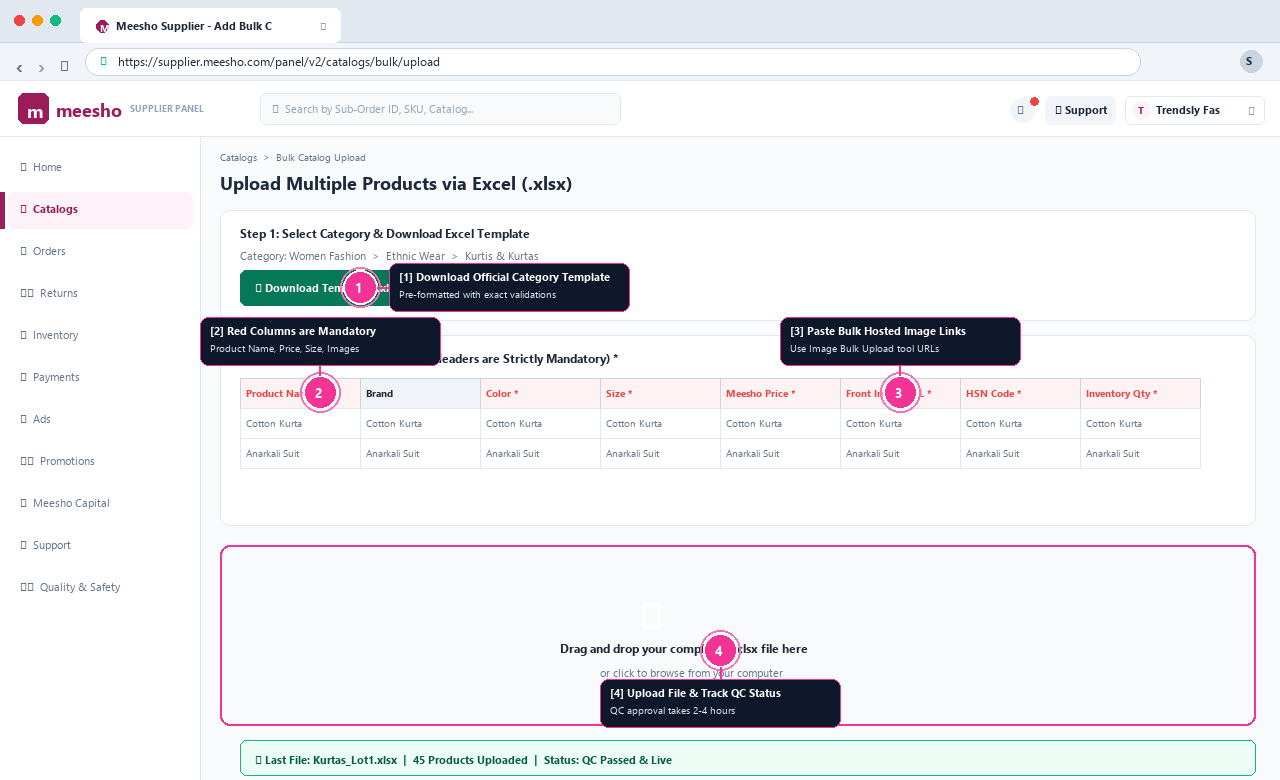
Meesho Bulk Excel Template Upload Studio with Visual Pointers
Open in Tab
Navigation Step Explanations:
1
1. Download Category Excel Template
Go to Meesho Bulk Catalog Upload , search your product category (e.g. Kurtis), and download the official .xlsx template.
Tip: Always download fresh template as attributes update regularly.
2
2. Fill Red-Header Mandatory Columns
Open file in Excel or use Trendsly Bulk Listing Studio. Fill mandatory red headers: Product Name, Brand, Size, Price, HSN, and Qty. Use Meesho HSN Finder for tax codes.
Tip: Do NOT edit column headers or sheet structure.
3
3. Paste Hosted CDN Image URLs
Upload images to Meesho Images Bulk Upload and paste generated links into Image 1, 2, 3 columns. See our Bulk Image Hosting Guide.
Tip: Never use private Google Drive links; only public direct CDN image links work.
4
4. Upload File & Track Bulk QC Verification
Save .xlsx file, drag and drop into upload area. Track file status under 'Upload History'. Approved catalogs go live within 4 hours.
Tip: If errors occur, download Error File, fix flagged cells, and re-upload.
Step-by-Step Execution Guide
Follow this practical workflow to achieve 100% compliance without account penalties
1
Step 1: 1. Download Category Excel Template
Go to Meesho Bulk Catalog Upload , search your product category (e.g. Kurtis), and download the official .xlsx template.
Action: Always download fresh template as attributes update regularly.
2
Step 2: 2. Fill Red-Header Mandatory Columns
Open file in Excel or use Trendsly Bulk Listing Studio. Fill mandatory red headers: Product Name, Brand, Size, Price, HSN, and Qty. Use Meesho HSN Finder for tax codes.
Action: Do NOT edit column headers or sheet structure.
3
Step 3: 3. Paste Hosted CDN Image URLs
Upload images to Meesho Images Bulk Upload and paste generated links into Image 1, 2, 3 columns. See our Bulk Image Hosting Guide.
Action: Never use private Google Drive links; only public direct CDN image links work.
4
Step 4: 4. Upload File & Track Bulk QC Verification
Save .xlsx file, drag and drop into upload area. Track file status under 'Upload History'. Approved catalogs go live within 4 hours.
Action: If errors occur, download Error File, fix flagged cells, and re-upload.
PRO SELLER ADVICE FROM TOP MEESHO SUPPLIERS
- • Keep SLA Under 24 Hours: Meesho algorithms prioritize catalogs from suppliers who pack and mark orders 'Ready to Ship' on the same day.
- • Price Strategically: Always offer both All-Return and Defect-Only pricing; 70%+ of smart shoppers choose Defect-Only, cutting customer returns in half.
- • Maintain 100% Stock Sync: Out-of-stock cancellations immediately reduce catalog ranking across search recommendations.
CRITICAL PITFALLS TO AVOID
- • Never Cancel Orders Manually: Meesho imposes up to ₹50 or 10% penalty per cancelled order. Adjust inventory to 0 instead of cancelling incoming orders.
- • Never Share Return Delivery OTP Without Inspection: Always check if the return package is torn, damaged, or empty before giving the delivery driver the OTP.
- • Never Miss the 7-Day Claim Deadline: File damaged or wrong return claims within 7 days of delivery with continuous unboxing video proof.
❓ Frequently Asked Questions
Instant answers to common questions sellers ask about this topic
How many products can I upload in one Excel file?
You can upload up to 100 products (SKUs) per Excel file on Meesho Supplier Panel.